

Create a Custom Action in Yotpo
In your Yotpo admin, navigate to Manage Program → Rewards Program → Manage earning rules and clickCreate earning rule. Choose Custom Action.
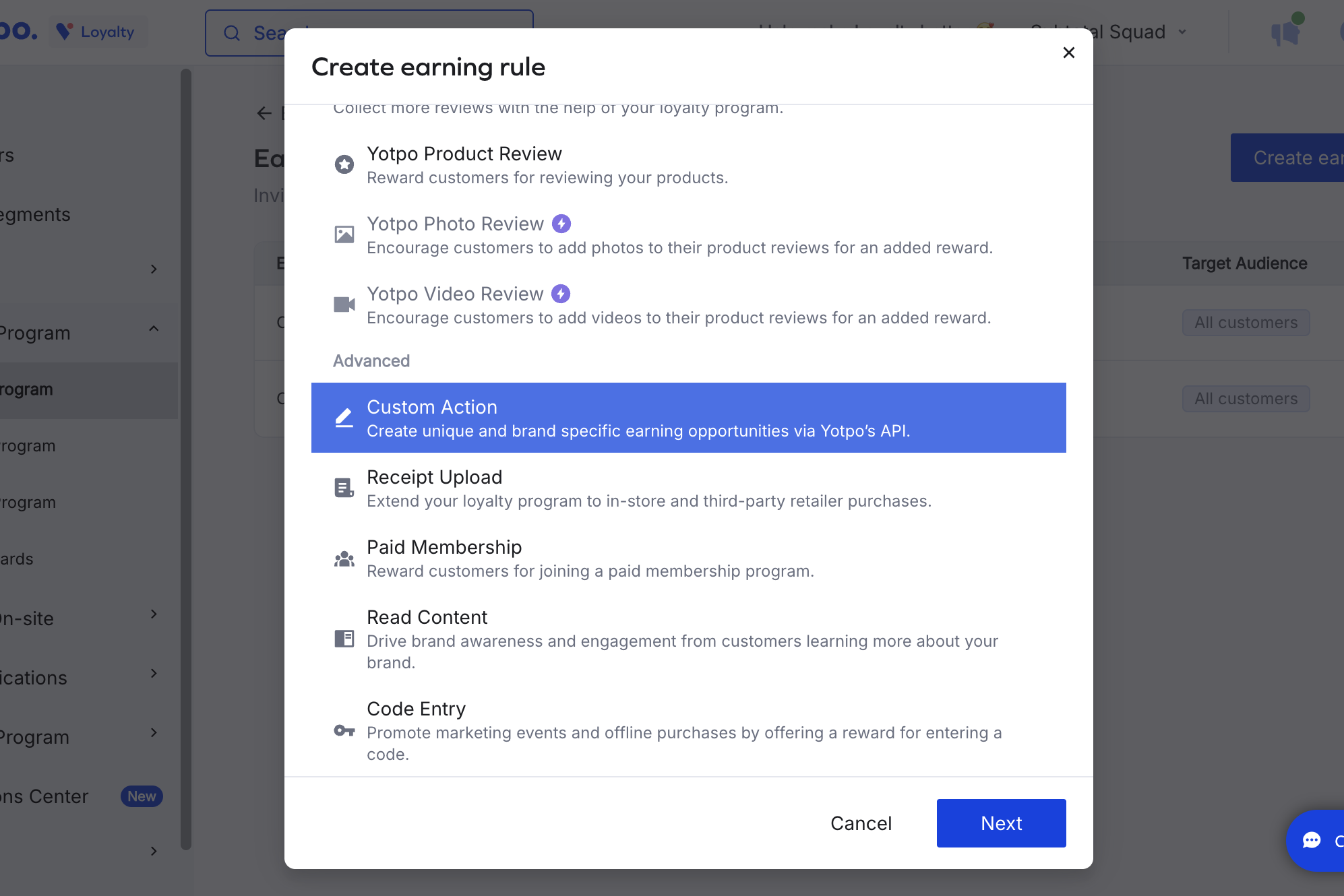
Made a Purchase). Save the rule.
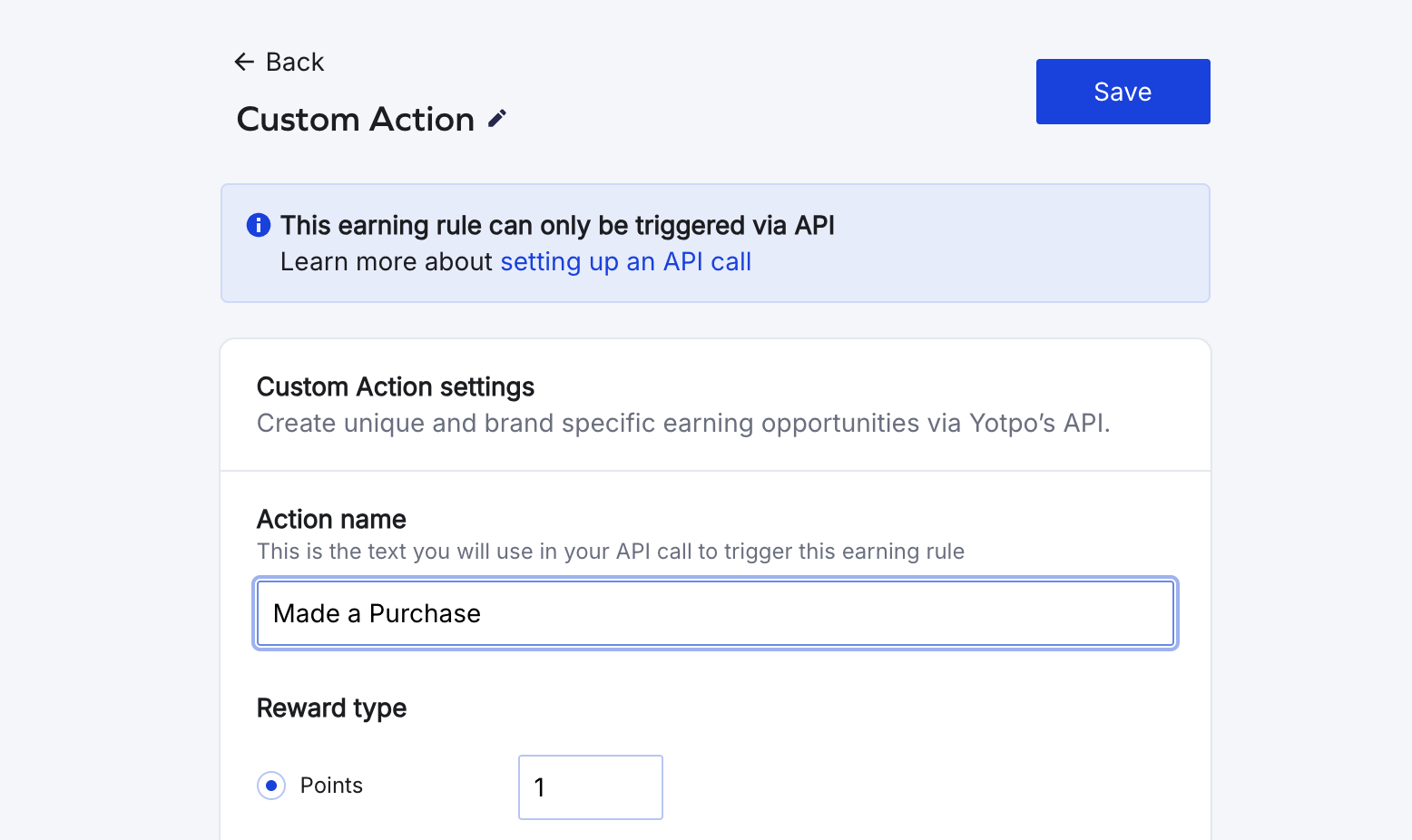
Make a Purchase.
Subtotal pre-computes the points for each purchase and sends the value to Yotpo, so the points configured on this Yotpo rule are always overridden. You can leave the rule’s points at a placeholder value (e.g.
1) — the actual reward is calculated in Subtotal.Add the action in Subtotal
In the Subtotal Dashboard, navigate to your Yotpo integration and clickAdd action.
Choose Purchase shared as the event, and set Action name to the same value you used on your Yotpo Custom Action. Optionally restrict to specific retailers, set Points per dollar, and set a Start date. Subtotal will only reward purchases made on or after the start date — this controls how much historical purchase data gets sent to Yotpo when a customer first links their account.
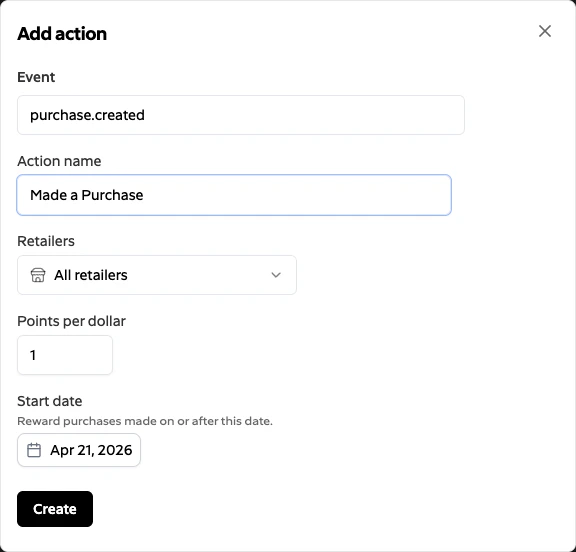
Create. Subtotal triggers the matching Custom Action in Yotpo for each qualifying purchase shared with your brand.
Wait for the purchase to complete
In the purchase action settings, turn on Wait for the purchase to complete, then save the action. Wait for the purchase to complete is off by default. It applies separately to each purchase event or earning action. The event's other conditions, such as retailers and purchase dates, also apply. With the option on:
If
status is null, purchases from Amazon, Walmart, and Target wait because these retailers report status. Purchases from every other retailer send at share time.
If a waiting purchase remains open or has no status, Subtotal sends it about 31 days after the purchase date. A purchase already past that deadline sends at share time.
A delivery after the wait counts once, the same as a normal Purchase shared delivery. Waiting does not create an extra billable event.
Simulated purchases from the Event Simulator always send at share time.
With the option on, the event sends each purchase at most once, even when the purchase is shared again after a reconnect.
With the option off, the event sends each qualifying purchase when it is shared.