

Overview
The Subtotal Shopify app, listed in the Shopify App Store as Subtotal Connect, adds account-linking to your store. Customers connect their retailer accounts (Amazon, Walmart, Sephora and others) and share verified purchases with you. Connections are tied to the Shopify customer, so in-store purchases reach the same profile your loyalty and email apps use. You install the app in Shopify and manage it from Apps → Shopify in the Subtotal Dashboard.Setup
1
Install the app
Install Subtotal Connect from the Shopify App Store.
2
Connect your store
In your Shopify admin, open Subtotal Connect, click Connect to Subtotal, sign in, and choose your team. You land back on the dashboard with the store listed under Stores.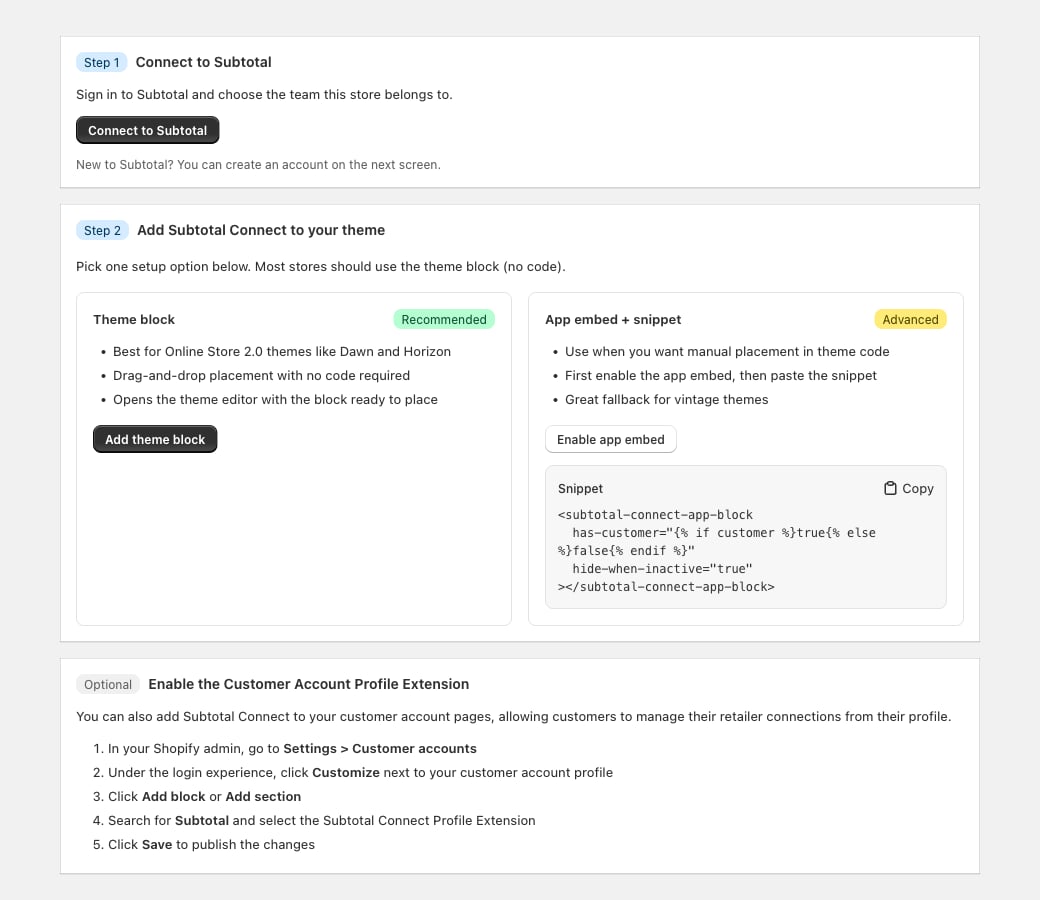
3
Place the block
Add the theme app block, the profile UI extension, or custom entrypoints.
4
Choose who sees the block
On the dashboard’s Shopify page, set Who sees the block: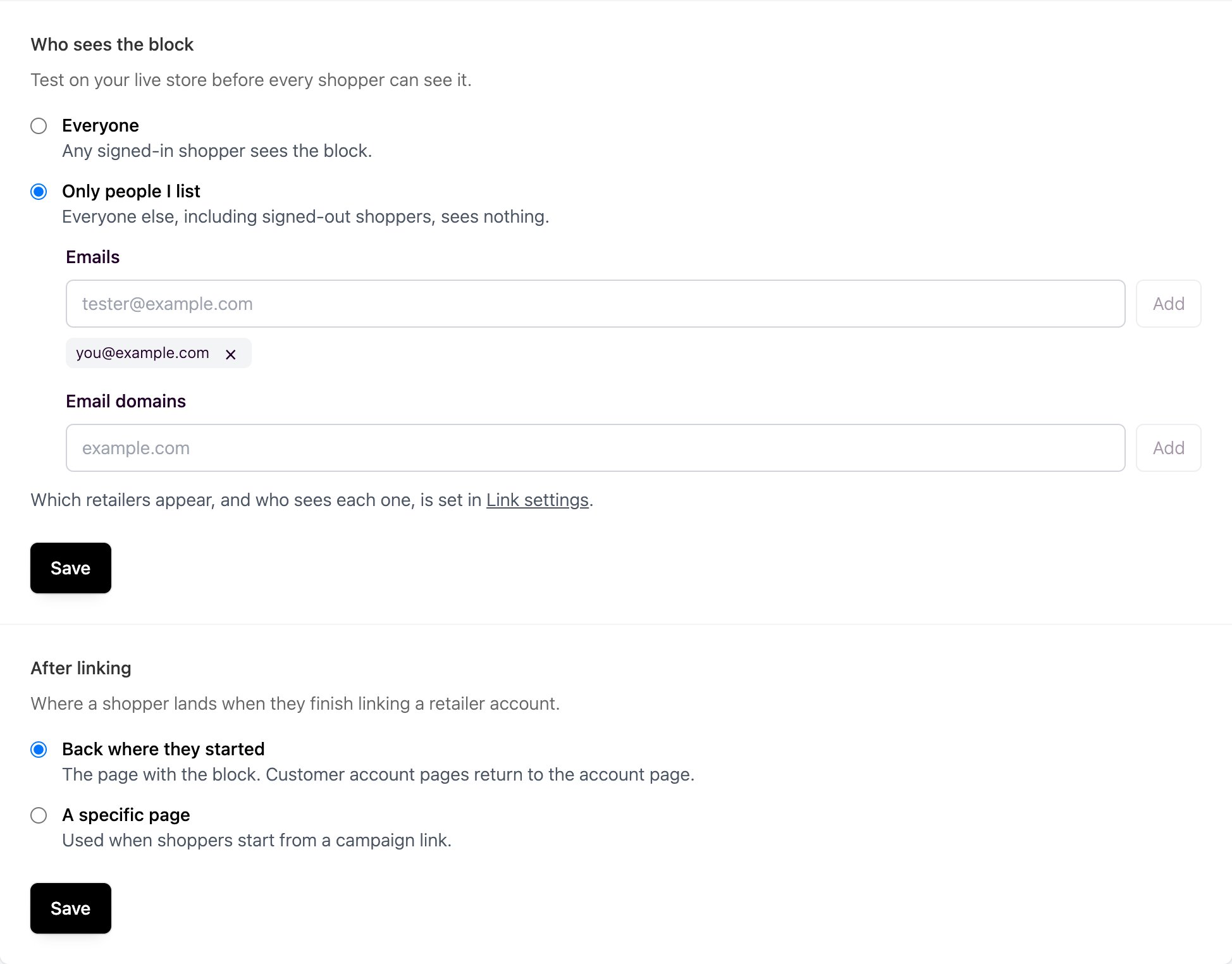
- Everyone: every signed-in shopper.
- Only people I list: only the emails and email domains you list. Signed-out shoppers never see it.
https:// page.Manage your stores
- More than one store: install the app on each. Every store appears under Stores.
- Reconnect: if a store needs reconnecting, the block is hidden on your storefront until you click Reconnect on the dashboard’s Shopify page.
- Remove a store: uninstall Subtotal Connect from that store’s Shopify admin.