

Create a Custom Action in Rivo
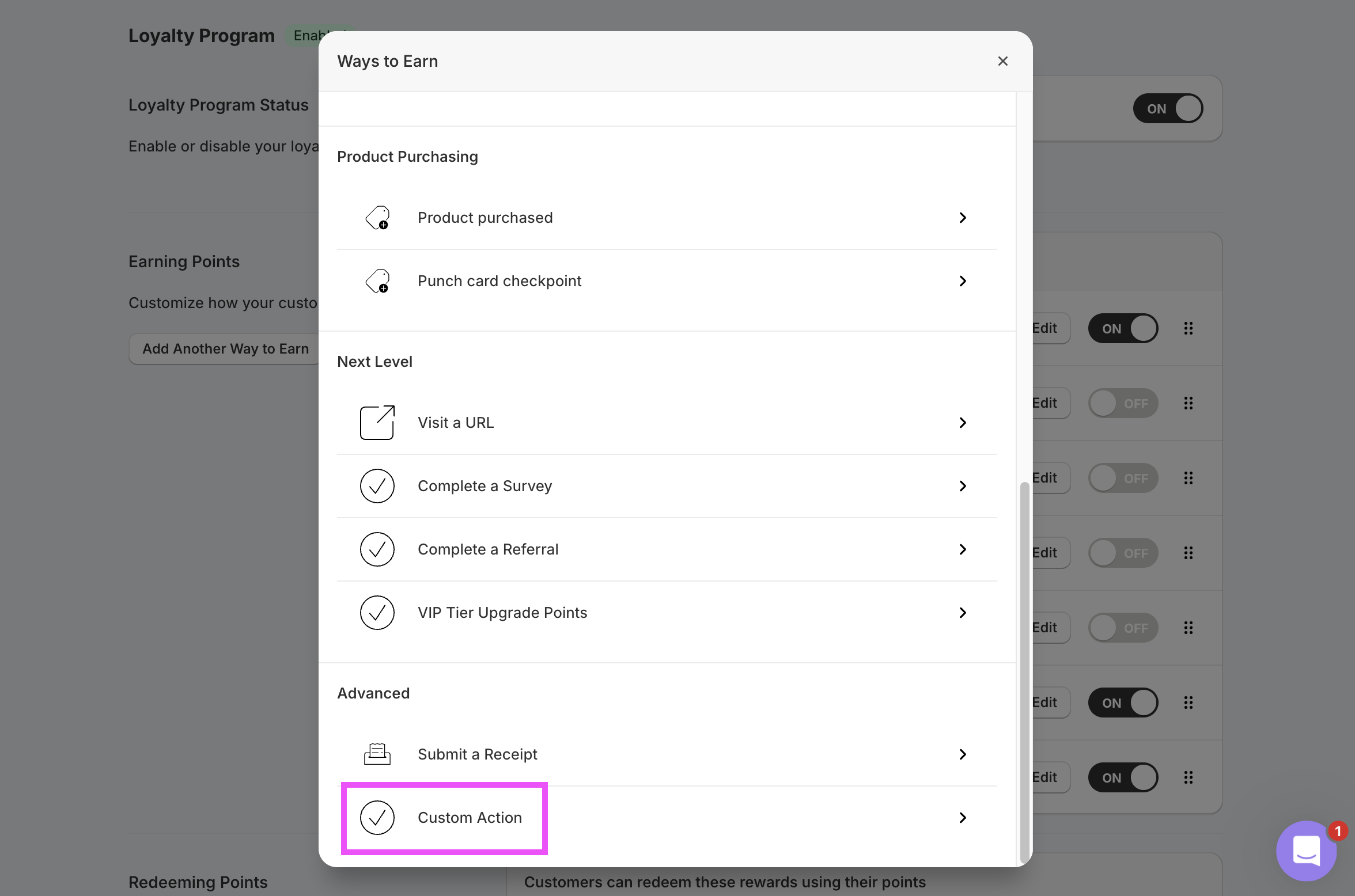
In your Rivo admin, navigate to the Loyalty Program and clickAdd Another Way to Earn. Choose Custom Action.
Make a Retail Purchase). Save the rule.
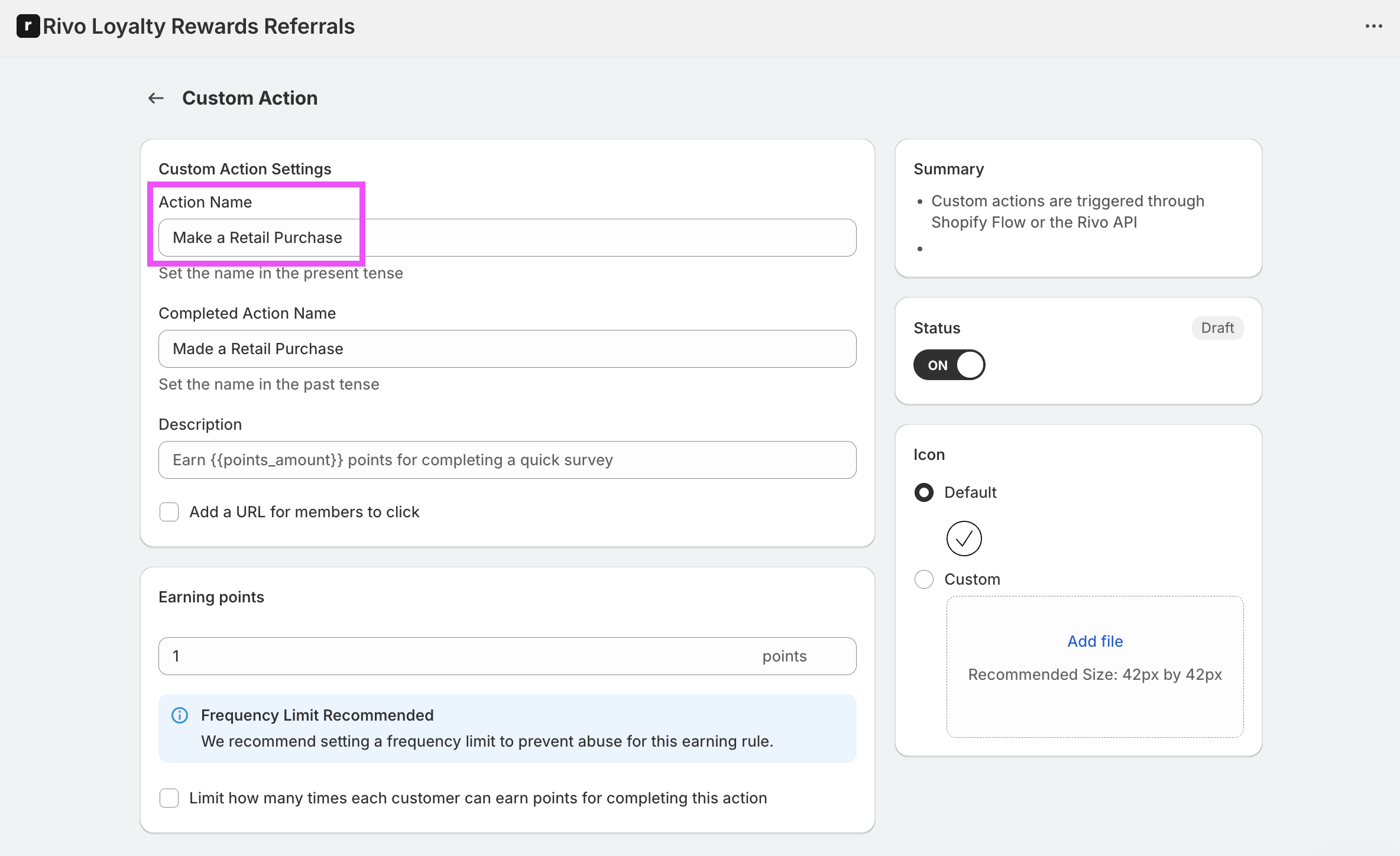
Subtotal pre-computes the points for each purchase and sends the value to Rivo, so the points configured on this Rivo rule are always overridden. You can leave the rule’s points at a placeholder value (e.g.
1) — the actual reward is calculated in Subtotal.Add the action in Subtotal
In the Subtotal Dashboard, navigate to your Rivo integration and clickAdd action.
Choose purchase.created as the event, and set Action name to the same value you used on your Rivo Custom Action. Optionally restrict to specific retailers, set Points per dollar, and set a Start date. Subtotal will only reward purchases made on or after the start date — this controls how much historical purchase data gets sent to Rivo when a customer first links their account.
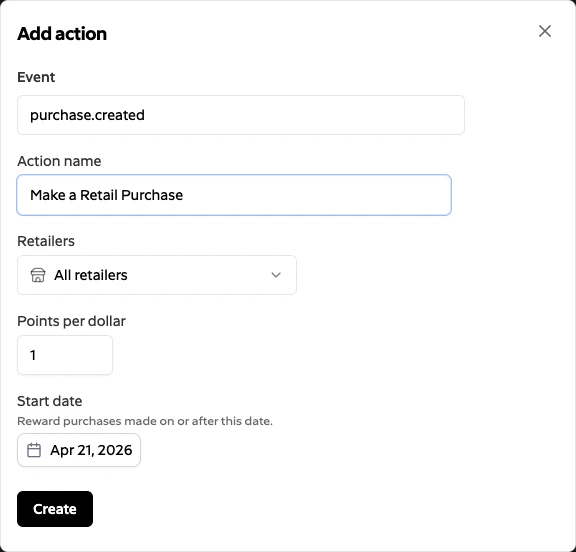
Create. Subtotal will now trigger the matching Custom Action in Rivo for each qualifying purchase it collects.