

Create a Custom Action in Rivo
In your Rivo admin, navigate to the Loyalty Program and clickAdd Another Way to Earn. Choose Custom Action.
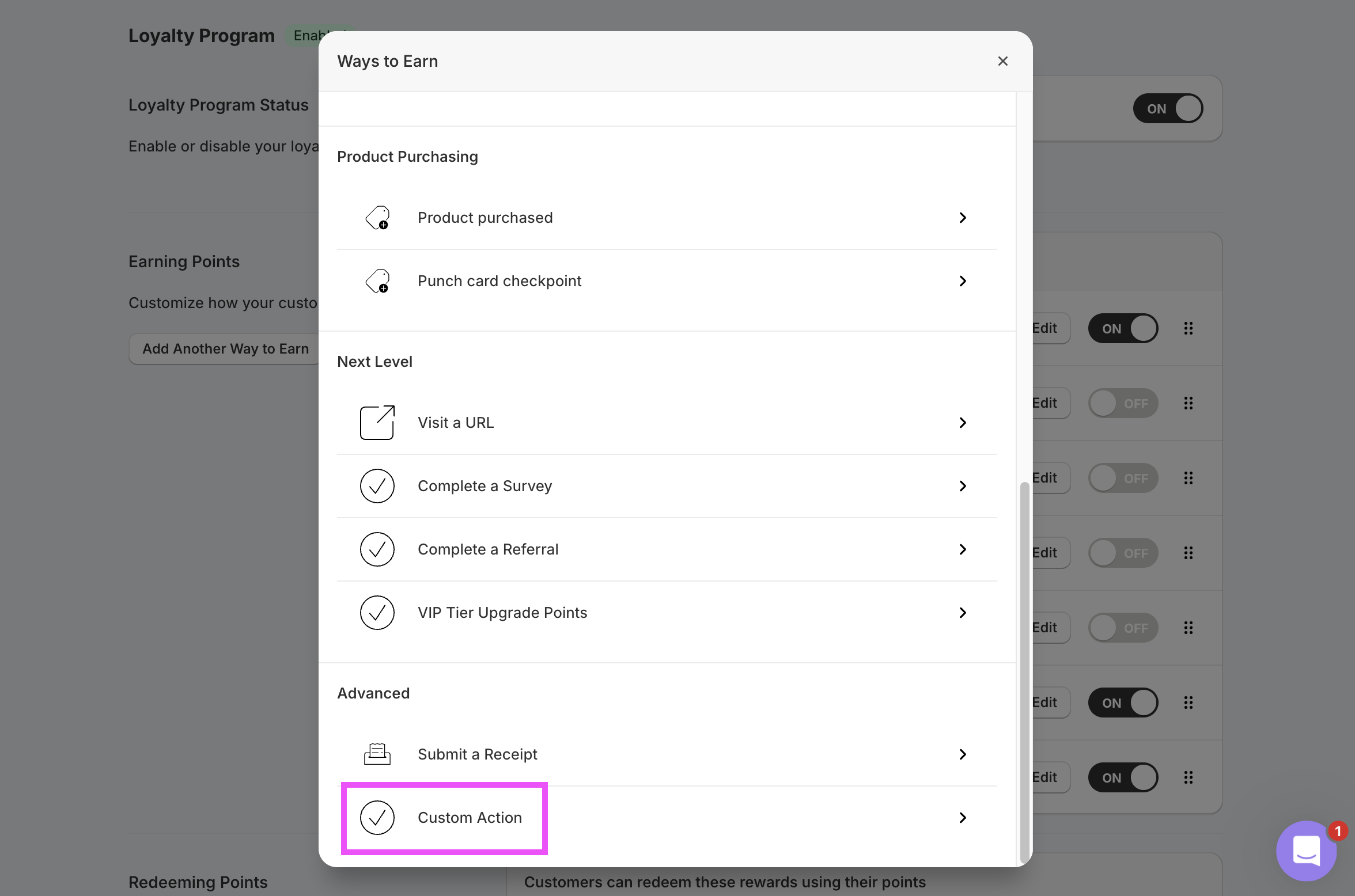
Link an Account). The points you set on the rule will be overridden by Subtotal, so you can leave them at a placeholder value (e.g. 1) — the actual reward comes from the Subtotal-side configuration you’ll set up next. Save the rule.
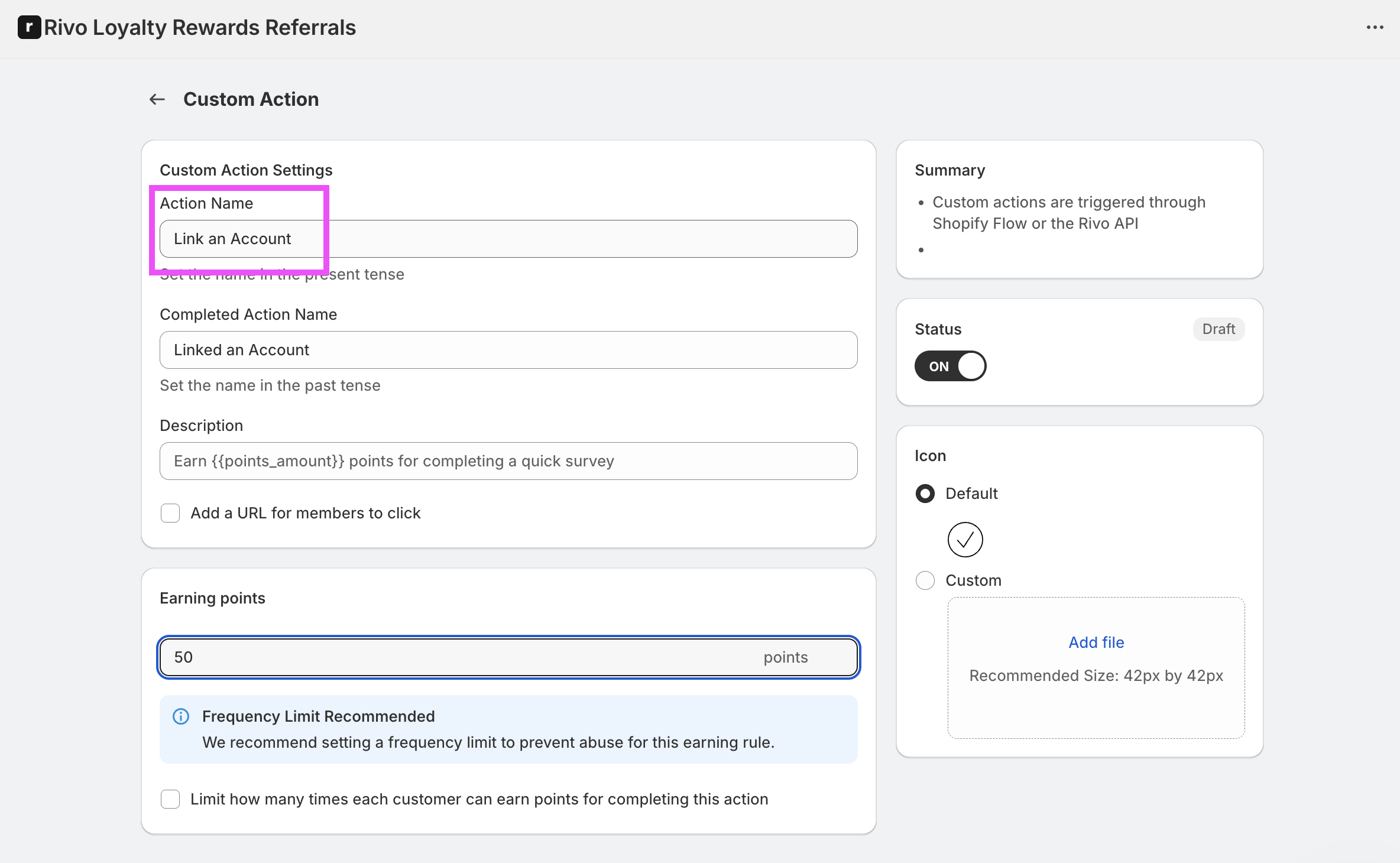
Add the action in Subtotal
In the Subtotal Dashboard, navigate to your Rivo integration and clickAdd action.
Choose account.linked as the event, and set Action name to the same value you used on your Rivo Custom Action. Optionally restrict to specific retailers.
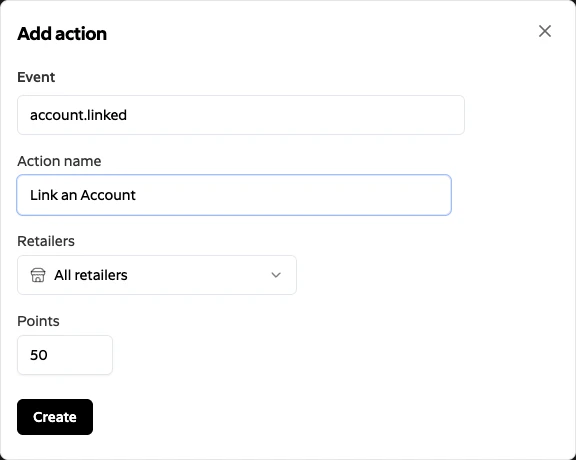
points_amount on every account.linked event, so whatever you set here is what the customer receives.
Click Create. Subtotal will now trigger the matching Custom Action in Rivo whenever a customer links a qualifying retailer account.
Because Subtotal always supplies
points_amount, the points configured on your Rivo Custom Action rule are effectively overridden. You can leave the rule’s points at a placeholder value — the actual reward comes from the Subtotal Points field.Points are awarded on the first successful activation of each connection. Re-authenticating an existing connection (for example, after a retailer password change) does not re-award points. Creating a fresh connection after a disconnect will.