> ## Documentation Index
> Fetch the complete documentation index at: https://docs.subtotal.com/llms.txt
> Use this file to discover all available pages before exploring further.
# Link accounts to your Shopify store
> Learn how to launch Subtotal Link from your Shopify store
## Overview
We'll create a button that customers can use to launch Subtotal Link from your Shopify store and link their accounts.
## Edit the code in your Shopify theme
Sign in to Shopify Admin. Navigate to *Online Store -> Themes -> Edit Code*.
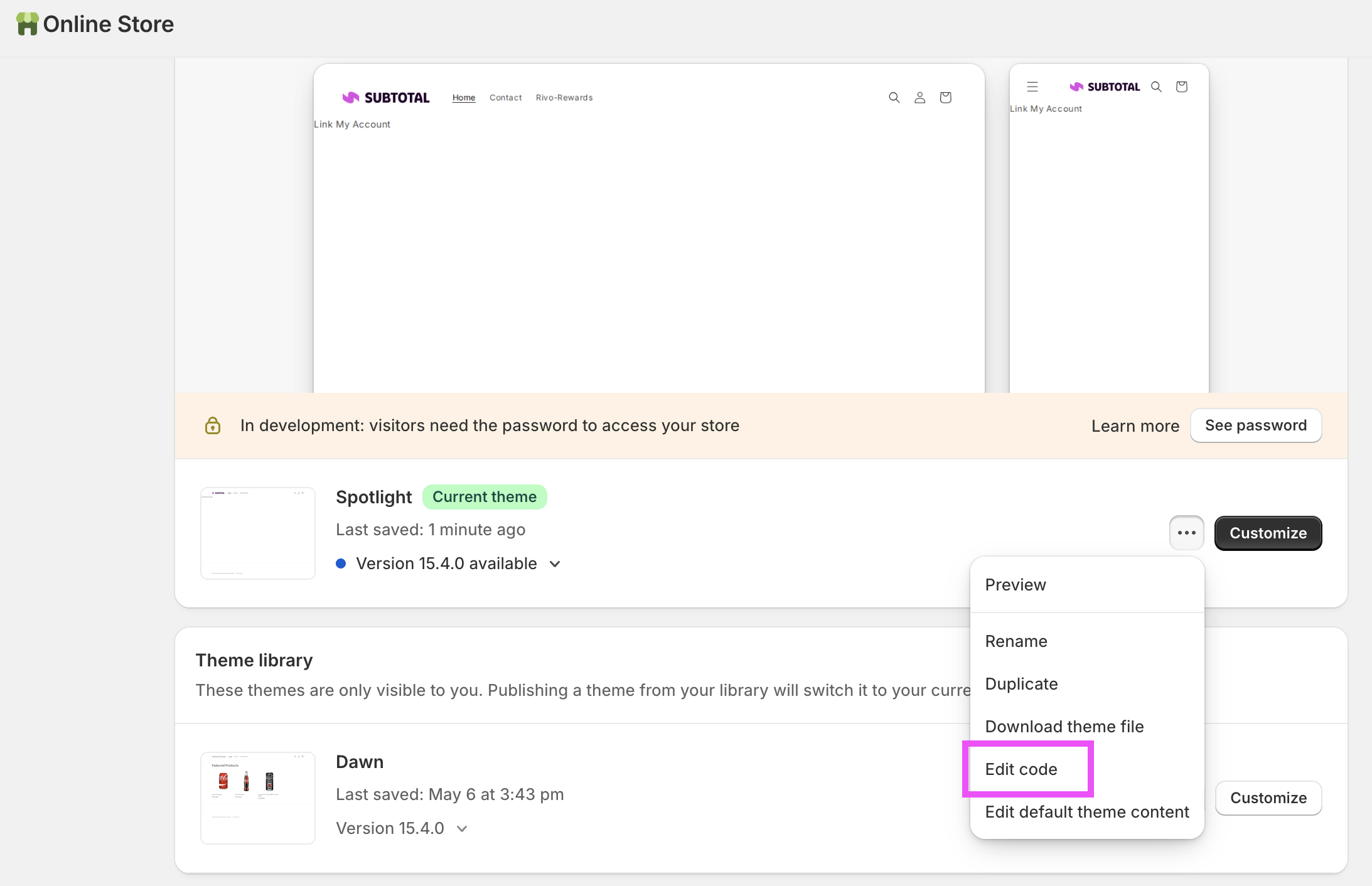 ## Create a custom button
Create a new file called `link_account_button.liquid` and customize your button using [Liquid](https://shopify.dev/docs/api/liquid).
Here's an example of a simple `Link your Walmart account` button.
Make sure you update the `href` to a [Link URL](/docs/subtotal-link/link-urls) from your Subtotal Dashboard. Include the `customer_id` query paremeter to ensure that any new connection is associated with this Shopify customer.
```liquid theme={null}
{% if customer %}
Link your Walmart Account
{% endif %}
{% schema %}
{
"name": "Subtotal Link Button",
"settings": [],
"presets": [
{
"name": "Subtotal Link Button"
}
]
}
{% endschema %}
```
## Add the button to your Shopify store
Customize your Store's theme and add the Subtotal Link Button to any page.
## Create a custom button
Create a new file called `link_account_button.liquid` and customize your button using [Liquid](https://shopify.dev/docs/api/liquid).
Here's an example of a simple `Link your Walmart account` button.
Make sure you update the `href` to a [Link URL](/docs/subtotal-link/link-urls) from your Subtotal Dashboard. Include the `customer_id` query paremeter to ensure that any new connection is associated with this Shopify customer.
```liquid theme={null}
{% if customer %}
Link your Walmart Account
{% endif %}
{% schema %}
{
"name": "Subtotal Link Button",
"settings": [],
"presets": [
{
"name": "Subtotal Link Button"
}
]
}
{% endschema %}
```
## Add the button to your Shopify store
Customize your Store's theme and add the Subtotal Link Button to any page.