> ## Documentation Index
> Fetch the complete documentation index at: https://docs.subtotal.com/llms.txt
> Use this file to discover all available pages before exploring further.
# Event Simulator
> Simulate real-world events such as users linking accounts and making retail purchases.
## Overview
The Event Simulator makes it easy to simulate real-world events such as users linking their
retailer accounts and making retail purchases. This allows you to test your API and webhook integrations
without linking personal accounts and making real purchases.
## Simulator Behavior
#### Supported Events
The event simulator allows you to simulate the following scenarios:
* Users linking retail accounts resulting in `connection.activated` webhooks
* Users making retail purchases resulting in `purchase.created` webhooks
* Linked accounts becoming unauthenticated resulting in `connection.unauthenticated` webhooks
* Users re-linking their accounts resuling in `connection.activated` webhooks
#### API and Webhook Interactions
You are able to retrieve details of these simulated objects via the Subtotal API, just as you would
real connections and purchases. Webhook destinations can be configured to accept simulated events
so you can safely avoid simulated events being delivered to production webhook destinations.
#### Simulated Purchases
When it comes to purchases, we ensure that all simulated purchases contain at least one product from
a brand that you are subscribed to. Additionally, simulated items are derived from real products
available at the retailer that the simulated connection was created for. This ensures realistic payloads
that contain your brand's products.
## Configure Simulated Events for Your Webhook Destination
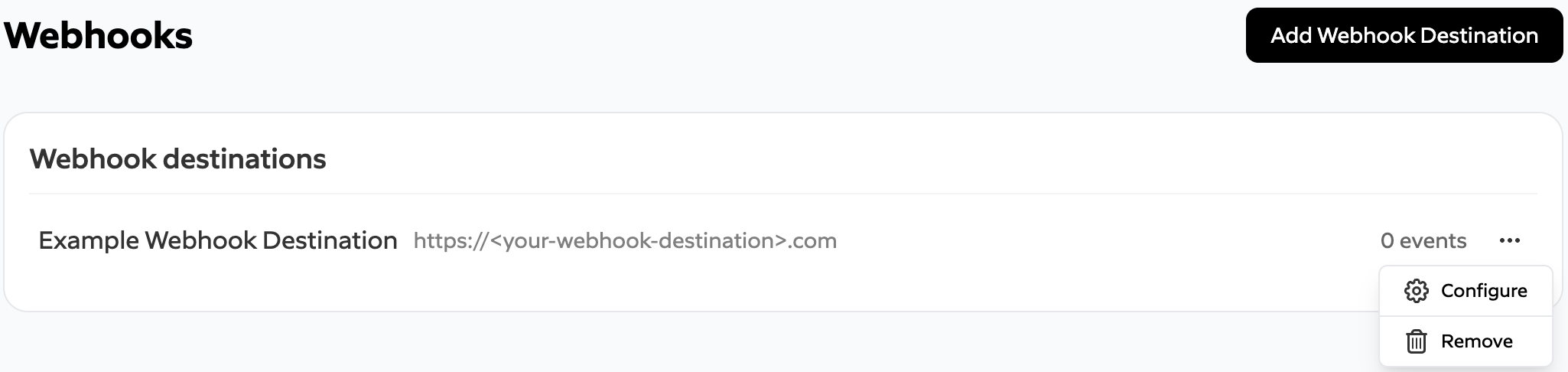
Navigate to [*webhooks*](https://dashboard.subtotal.com/webhooks) and select the option to configure your
webhook destination
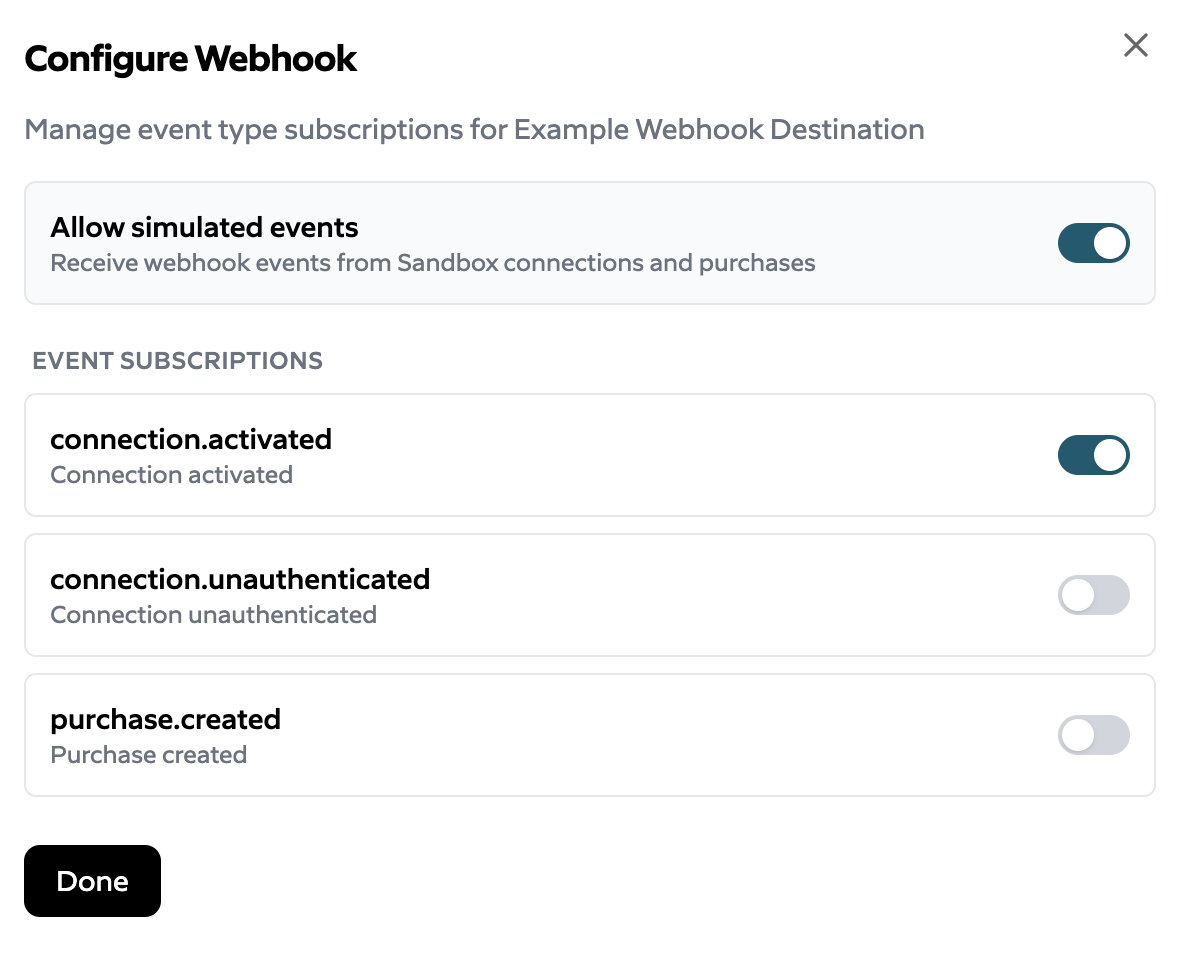
 Switch the toggle on to enable simulated events for your webhook destination and select *Done*.
Ensure you have also enabled your desired event type subscriptions.
Switch the toggle on to enable simulated events for your webhook destination and select *Done*.
Ensure you have also enabled your desired event type subscriptions.
 ## Run Simulations
**Note**: Prior to simulating connections, you must first configure your list of retailers in
the [*Subtotal Link Configuration*](https://dashboard.subtotal.com/link)
To get started with running simulations, navigate to the [*simulator*](https://dashboard.subtotal.com/simulator).
#### Simulate an Account Link
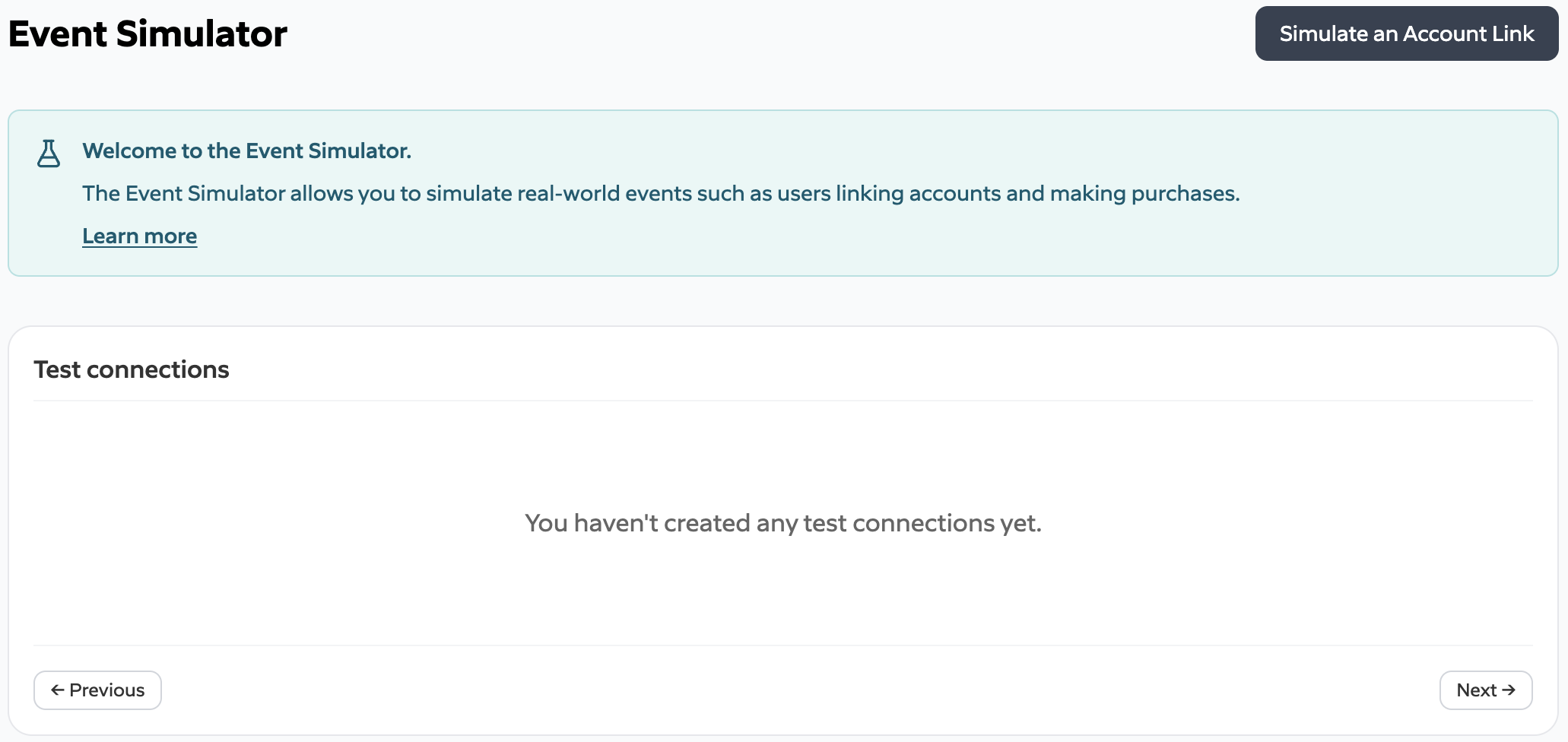
To simulate an account link, select the option in the top right to *Simulate an Account Link*.
## Run Simulations
**Note**: Prior to simulating connections, you must first configure your list of retailers in
the [*Subtotal Link Configuration*](https://dashboard.subtotal.com/link)
To get started with running simulations, navigate to the [*simulator*](https://dashboard.subtotal.com/simulator).
#### Simulate an Account Link
To simulate an account link, select the option in the top right to *Simulate an Account Link*.
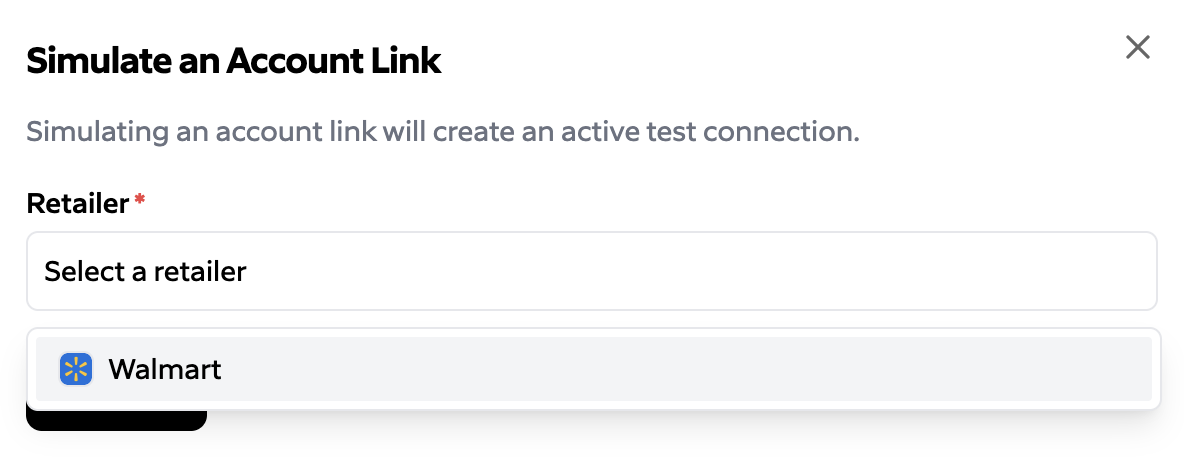
 You will then be prompted to select a retailer for the simulated connection. After selecting the
retailer and clicking *simulate*, the simulated connection will be created and a
`connection.activated` webhook will be delivered.
You will then be prompted to select a retailer for the simulated connection. After selecting the
retailer and clicking *simulate*, the simulated connection will be created and a
`connection.activated` webhook will be delivered.
 #### Modify Status and Simulate Purchases
Once a simulated connection has been created, you'll see the new connection in the
list of simulated connections. The identifier displayed with the connection corresponds
to the `connection_id` for the connection, which can be used for API calls to retrieve
data related to the connection. Selecting the options for the connection displays the
ability to change the status of the connection and simulate a purchase. This results
in the `connection.[activated|unauthenticated]` and `purchase.created` events respectively.
#### Modify Status and Simulate Purchases
Once a simulated connection has been created, you'll see the new connection in the
list of simulated connections. The identifier displayed with the connection corresponds
to the `connection_id` for the connection, which can be used for API calls to retrieve
data related to the connection. Selecting the options for the connection displays the
ability to change the status of the connection and simulate a purchase. This results
in the `connection.[activated|unauthenticated]` and `purchase.created` events respectively.
 **Note:** Simulated objects such as connections and purchases will be purged periodically.